#
Commits signing
#
Why Sign Your Git Commits?
Git allows anyone to set any name and email on a commit. This makes it trivial for an attacker to impersonate another contributor in the Git history.
Example:
git config user.name "Linus Torvalds"
git config user.email "torvalds@linux-foundation.org"
echo "Malicious code" > backdoor.c
git add backdoor.c
git commit -m "Improve performance"
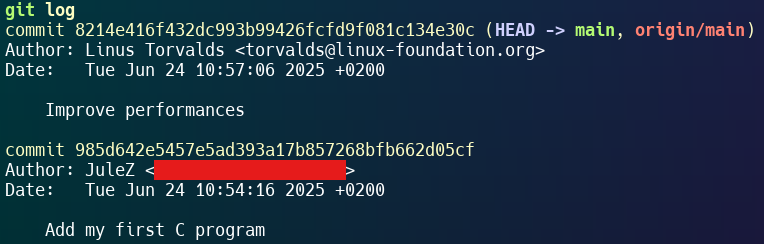
And here’s how it looks in the commit history:

As you can see, GitHub displays Torvalds's avatar and name, even though he never made this commit. Although you can see that
torvaldsis the author butJulestbltis the committer, this is not enough to verify authenticity.
As my github account is linked to my SSH key, it will recognize me as the committer, but in the repository, it will only show the author as Linus Torvalds, which can be misleading.
#
Demo: Impersonating a GitHub Contributor
#
1. Clone a test repository:
git clone https://github.com/yourname/test-repo.git
cd test-repo
#
2. Change Git identity locally:
git config user.name "octocat"
git config user.email "octocat@github.com"
#
3. Create a fake commit:
echo "Commit impersonation" > hack.txt
git add hack.txt
git commit -m "Fix security issue"
#
4. View the commit:
git log --show-signatureResult: The commit appears to come from another GitHub user (even shows their avatar if the email matches), without any authenticity verification.
#
The Solution: Sign Your Commits
Git allows you to digitally sign your commits using a GPG or SSH key. Platforms like GitHub and GitLab then show a Verified badge for signed commits.
#
Generate a GPG key:
gpg --full-generate-keyChoose an RSA 4096-bit key linked to your GitHub email.
#
List your GPG keys:
gpg --list-secret-keys --keyid-format=longCopy the key ID, then:
gpg --armor --export <KEY_ID>Add the public key to GitHub at:
Settings > SSH and GPG keys > New GPG key
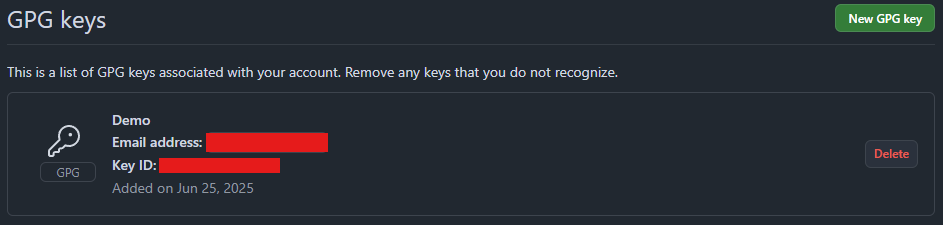
At the end, you should have the GPG key added to your GitHub account :
#
Configure Git to sign commits:
# Use --global to apply this setting globally.
git config user.signingkey <KEY_ID>
git config commit.gpgsign true
#
Make a signed commit:
git commit -S -m "My secure commit"If configured correctly, GitHub will show a
Verifiedbadge ✅

#
Bonus: Enforce Signature in CI/CD
You can enforce that all commits in a branch are signed (via Git hooks, GitHub branch protection rules, or your CI/CD pipeline).
#
Conclusion
Signing your commits allows you to:
- Authenticate authors with certainty,
- Prevent commit impersonation,
- Strengthen traceability in open source or critical projects.
It's a simple and highly recommended security best practice for any developer.